What Is a Saved Search?
When searching in a database, you may spend a lot of time refining your search terms and getting the settings just right. By saving your search strategy, you can save time in the future so that the search can be re-run with just a few clicks, rather than having to retype everything out.
What Is a Search Alert?
Search alerts take a saved search a step farther and set it up so that the database will email you periodically to alert you to new results. With a search alert, you do not have to remember to go in and re-run the search manually; the database will instead run the search each day, week or month automatically.
Creating a PubMed Account (aka My NCBI Account)
Setting up a saved search or search alert in PubMed is easy, but you must first create a personal PubMed account using the following steps:
- Select “Log In” at the top of a PubMed search screen.
- If you do not already have a PubMed account, click on the link for “New here? Sign Up.”
- Select a third-party authentication system to link to your new PubMed account.
- PubMed requires that you use a third-party partner organization, such as eRA Commons, ORCiD or Ohio State.
- If you wish to use your Ohio State credentials, click on “more sign up options,” then navigate to the O’s and select “Ohio State University.”
- Tip: You can connect your Google Account; however, this option does not always work well on the medical center network, and you will want to select an alternative method as well.
- Once you have created your account, you can then log in using your selected credentials.
Creating a PubMed Saved Search or Search Alert
To save your search, use the following steps:
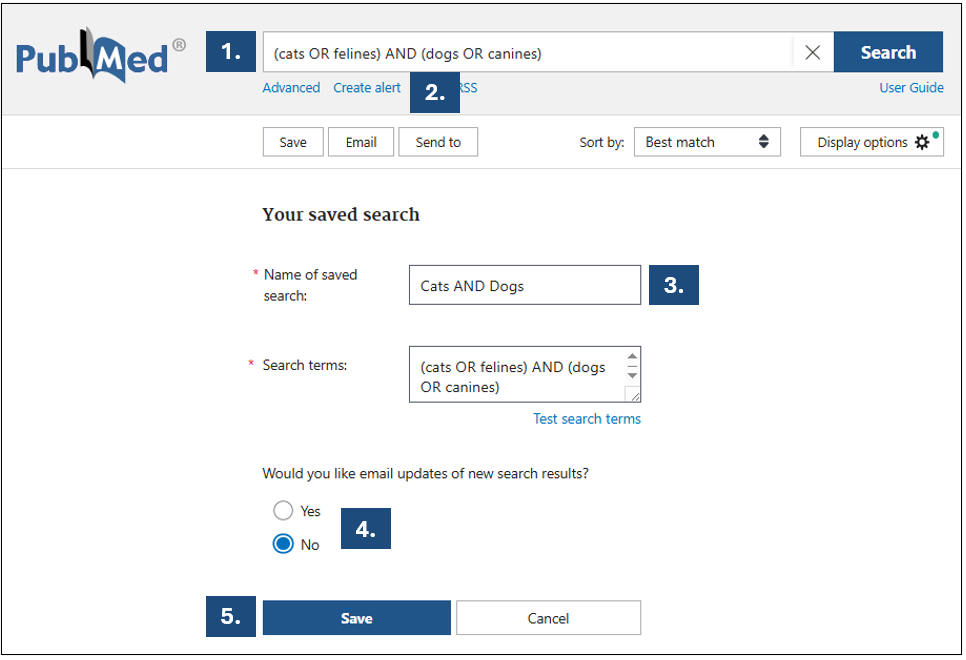
- Enter your search strategy into the search box.
- Click on the link for “Create alert” underneath the search box.
- Name the search whatever you would like and review the terms that will be saved.
- If you are just saving your search (and not creating an alert), click the “No” button under “Would you like email updates of new search results?”
- Click “Save.”
If you would prefer to set up a search alert so that the database will email you, continue with the following steps:
- Click the “Yes” button under “Would you like email updates of new search results?”
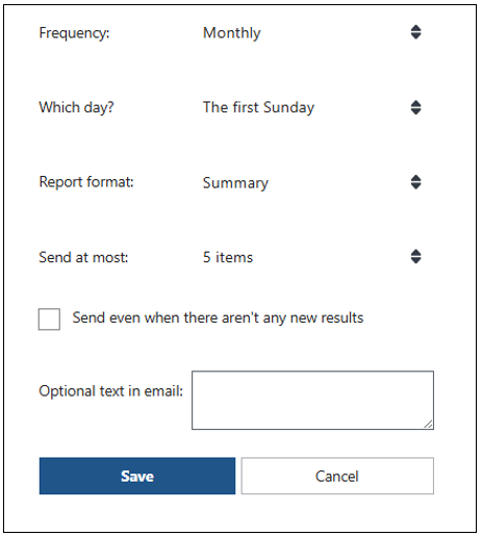
- You then get to select the following options:
- Frequency: Do you want to receive the alerts Monthly, Weekly, or Daily?
- Which day: Which day of the week would you like to receive the alerts?
- Report format: Would you prefer a Summary format that includes just some basic information about the articles, or would you prefer something more detailed, like the full Abstract format?
- Send at most: How many items would you like to receive at a time?
- Send even when there aren’t any new results: Click this box on if you would like to still receive empty notifications when there are no new results. This can be helpful to get confirmation that the alert is still working, even when you haven’t gotten any results for a long time.
- Optional text in email: You can enter any text that would be helpful to get along with the notification.
- Click “Save.”
Managing Your Saved Searches and Search Alerts
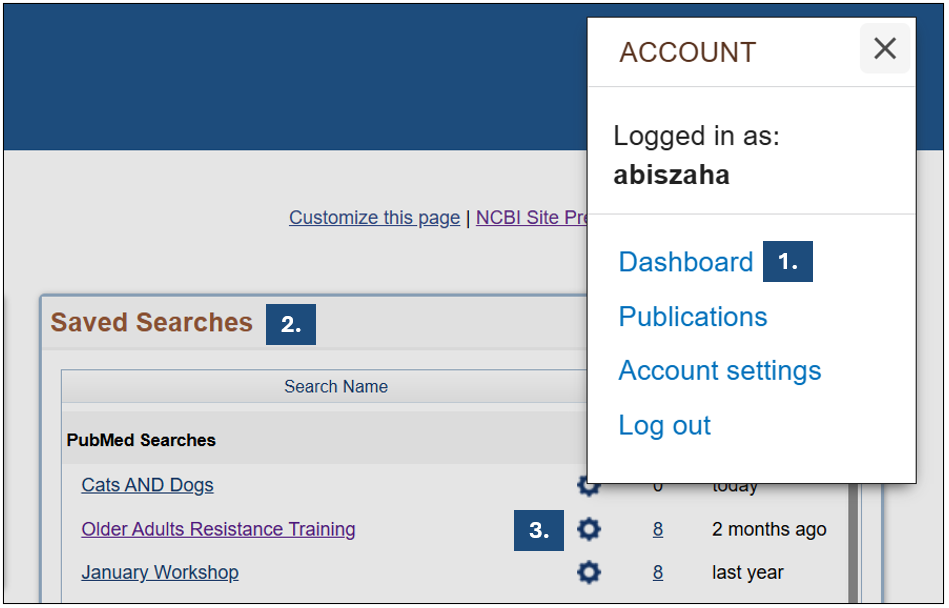
You can edit and manage your saved searches and search alerts through your account dashboard.
- After logging in, click on your username at the top of the PubMed search screen and select Dashboard.
- You will see a number of tiles in your account dashboard, one of which will be your Saved Searches.
- Click on the cog icon (Edit Saved Search Name and Schedule) next to a search to make changes.