Prior 550 Conference Room
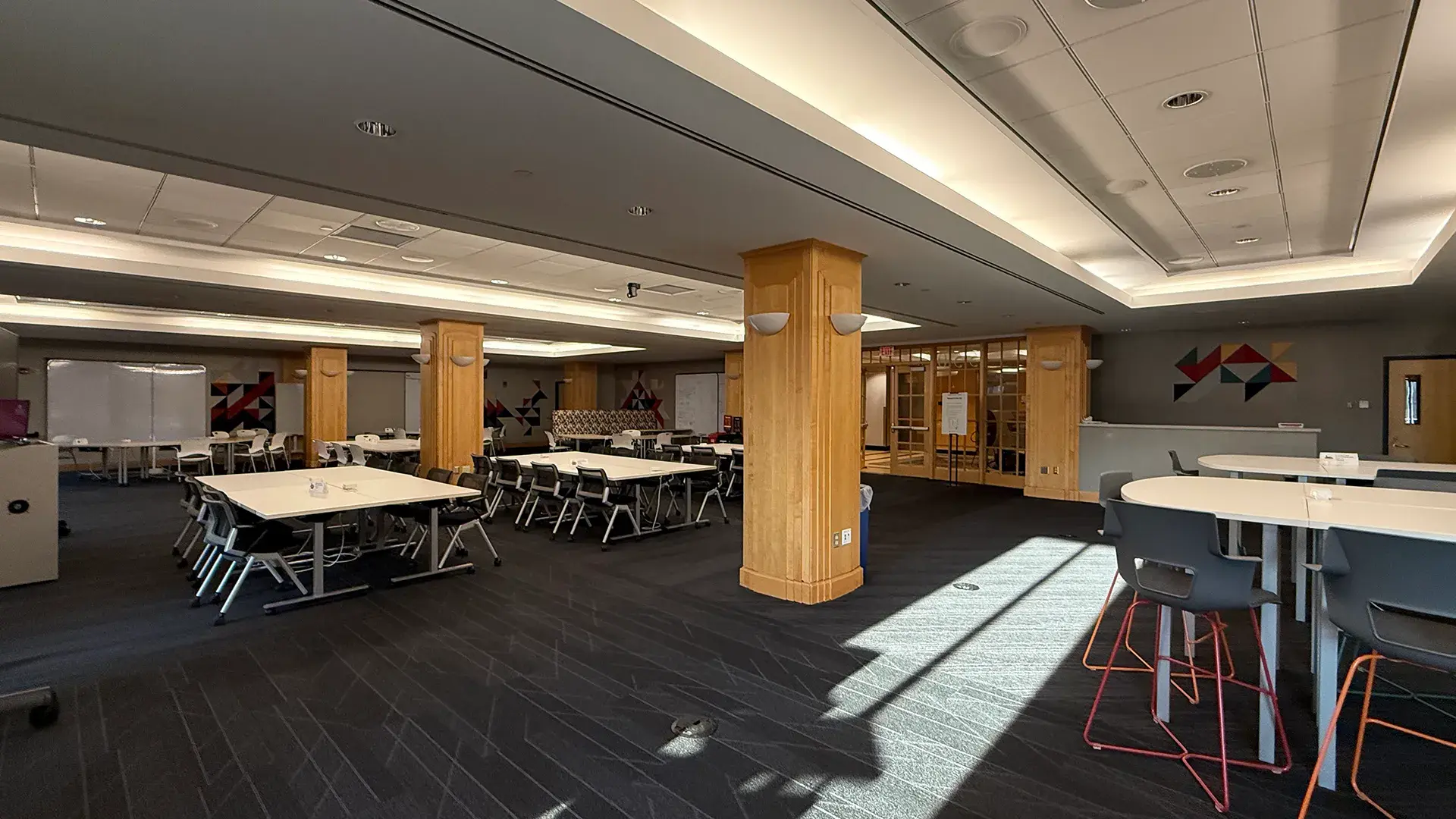
Prior 550 Conference Room
Prior 550, located on the 5th floor of the HSL, includes configurable furniture and state-of-the-art technology for in-person, hybrid and remote presentations and meetings. Members of the Ohio State and Wexner Medical Center communities can reserve the room in advance. When not in use, Prior 550 is available as open study space.
Access
This room is self-service. Please contact your meeting organizer or department for questions such as parking options, catering access, location of the room, etc. If a building component in the room is not functioning properly (lights out, outlet not working, uncomfortable temperature, etc.) you may alert the HSL front desk for assistance.
For help with technology and room capabilities, please call Events & Video Production at (614) 688-9000. HSL staff cannot assist with technology and room capabilities.
Room Features
- Community whiteboards
- TV screens for displaying presentations
- Podium with microphone, connected to speakers spread throughout the room
- Comfortable seating for open study times
- Group seating for collaboration and events
- Outlets available throughout the room
How to Use the Space
Please read the policies below if you reserve Room 550 and intend to use the equipment or re-arrange furniture for an event.
Please Note: This room has three large television screens, not a projector. For the best viewing experience, avoid using small fonts on presentation slides.
Start the AV System:
Press the Crestron touch panel to activate it, and then select your display source.
Choose a Display Source:
- Lectern Mic Only – Press “No Source (Off)” on the Crestron touch panel.
- Installed PC – Turn on the computer and log in with your OSUWMC credentials. TIP: Call the ServiceDesk at (614) 293-3861 for issues with your credentials.- Press “PC” on the Crestron touch pane
- Guest Device via HDMI (ex. laptop) – Turn on and connect your guest device to the HDMI cable in the top of the lectern.- Press “Guest HDMI” on the Crestron touch panel.
- Image Mute – This will cause the large flat panels to go black, but will come back when you select it again.- Useful if you do not want the audience to see presentation transitions, your email, etc.
Adjust Audio Levels:
To adjust mic volume, press the plus or minus under “Speech Volume” on the Crestron touch panel.
To adjust PC or guess device volume, press the plus or minus under “Source Volume” on the Crestron touch panel. TIP: If you are not hearing audio, make sure the volume is up on the PC or guest device, as well as the Crestron panel. To adjust, press “1" on the Crestron touch panel.
Choose which camera to control under "Camera Selection": − "Front Camera" lectern. − "Rear Camera" Displays the lectern/presenter. The camera is located near the rear door on the wall TIP: The actively selected camera will show black text. After selecting Front or Rear Camera, the "Pan/Tilt/Zoom Control" will adjust the camera view.
Shut Down the AV System
Press the power symbol on the bottom left edge of the Crestron touch panel, then “Shut Down System Now”.
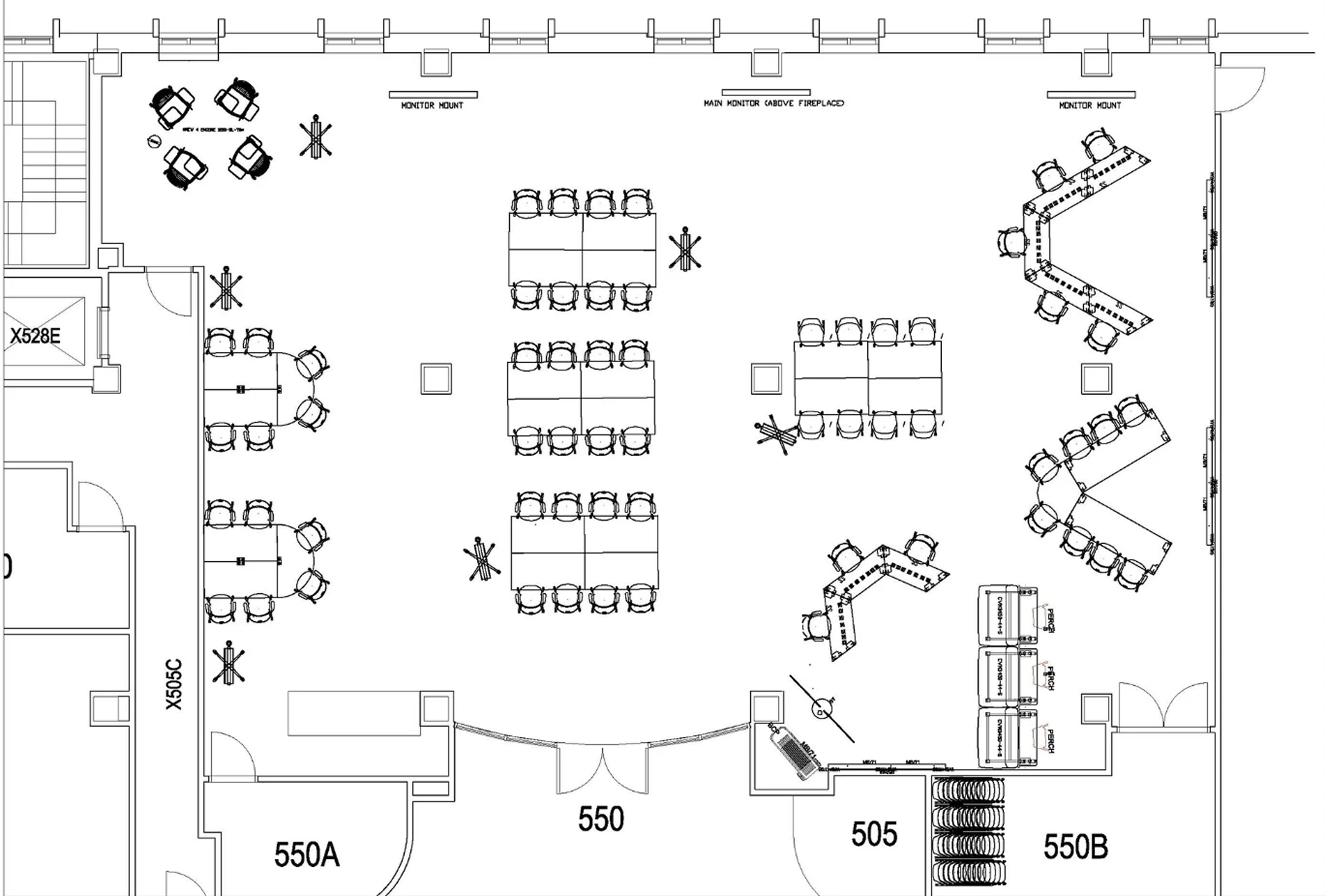
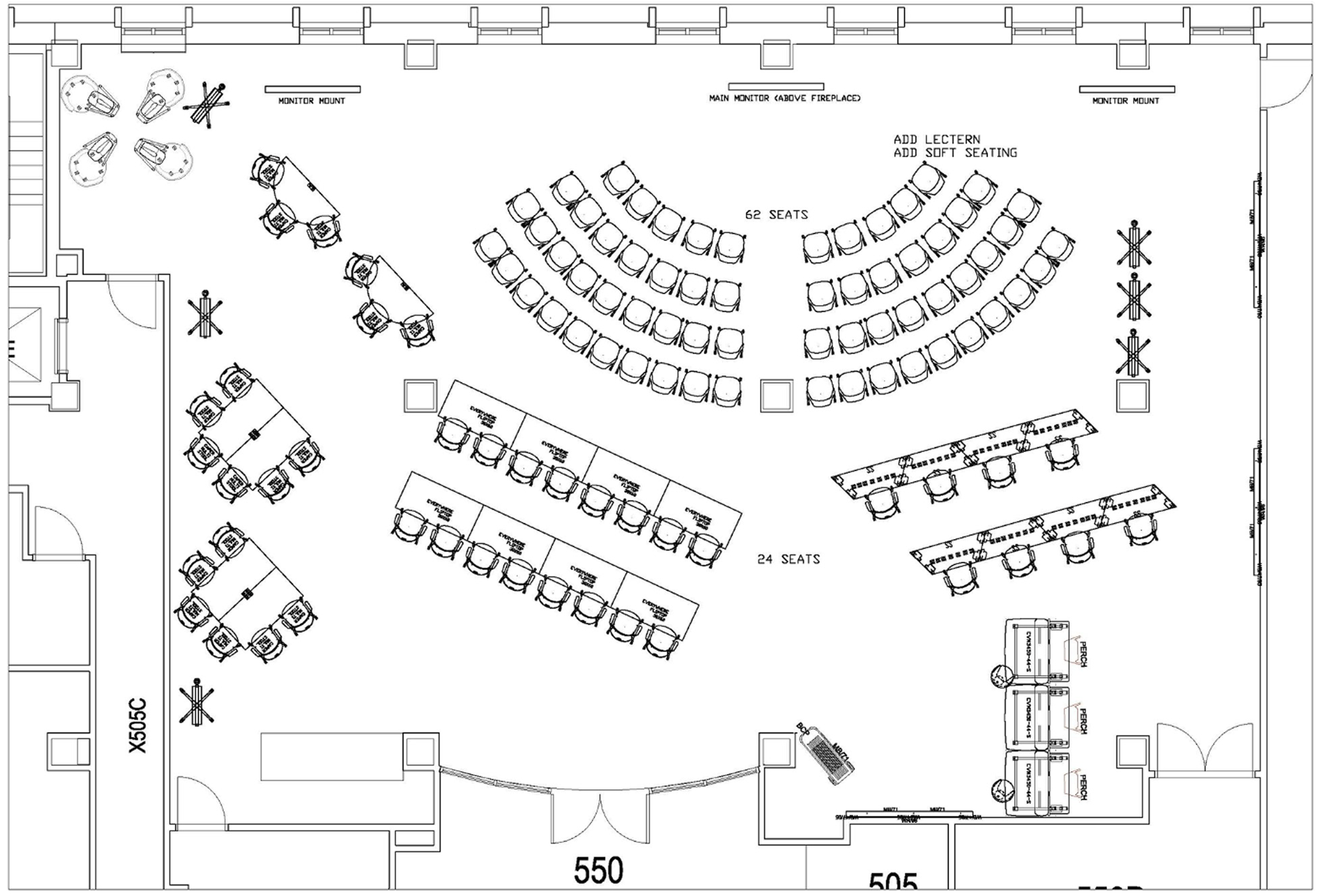
If you need to move furniture in Room 550 during the room reservation process, please utilize the layouts below to put the table and chairs back when you are done using the room. Moving the tables requires unlocking ganging brackets. See the instructions on the next page to learn how.
Collaboration & Instruction Layout
Seminar Layout
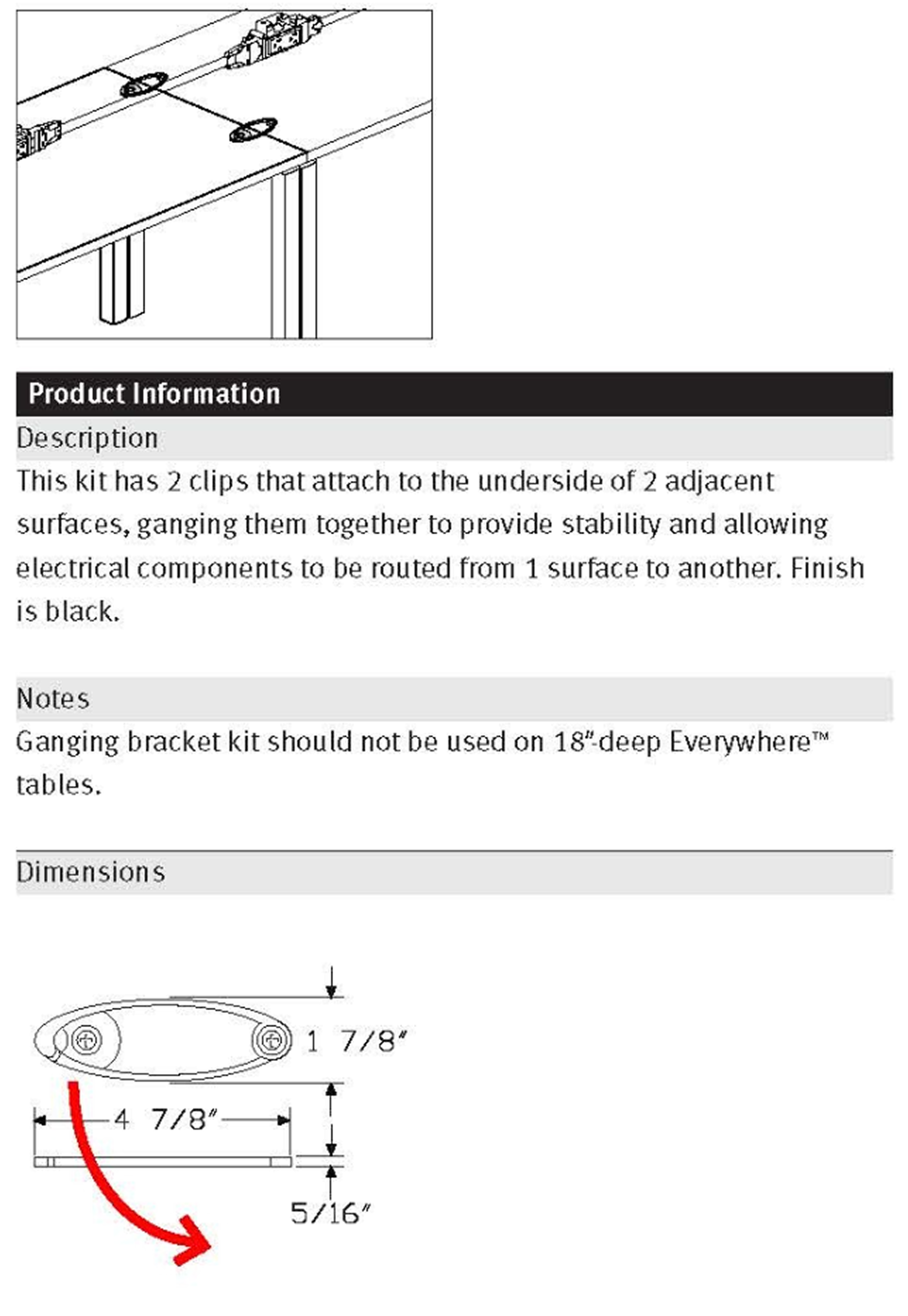
Putting Tables Back Together
Most tables in this room require unfastening ganging brackets under the tables in order to move them. Do not move tables without unfastening these brackets. If you are not comfortable moving the furniture, please leave it in place. Individuals will still be able to hear clearly from high-quality speakers throughout the room.
If you move tables for your event, please return the furniture to its original setup using the layouts provided on the previous page.
NOTE: GANGING CLIP OPENS OUT, NOT DOWN
- Do not disconnect screens
- If you want to move a screen, it must stay plugged in